WhatsApp chat statistics in ChatGPT: how to use the Le Confidant plugin
Le Confidant is a published plugin in ChatGPT. Once you connect it, ChatGPT can read the statistics of your WhatsApp chat analysis and explain them in your own chat. It's free on every Le Confidant plan.
On the Le Confidant page that opens, select the analysis you want to share, tick the consent box and choose Allow access.
That's it. You're back in ChatGPT: start a chat with Le Confidant and ask, "read the statistics from my connected analysis".
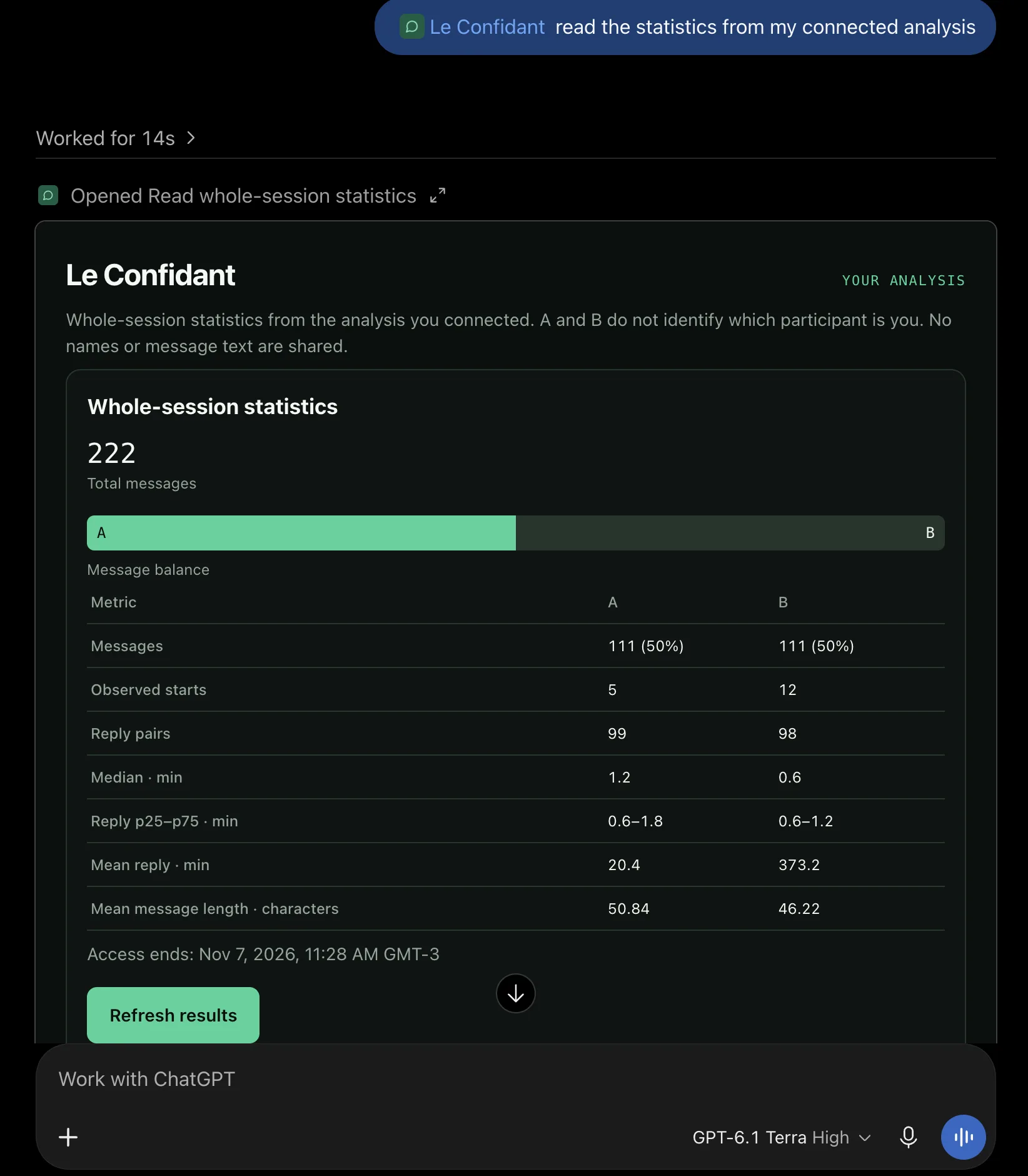
The results card Le Confidant shows inside ChatGPT.
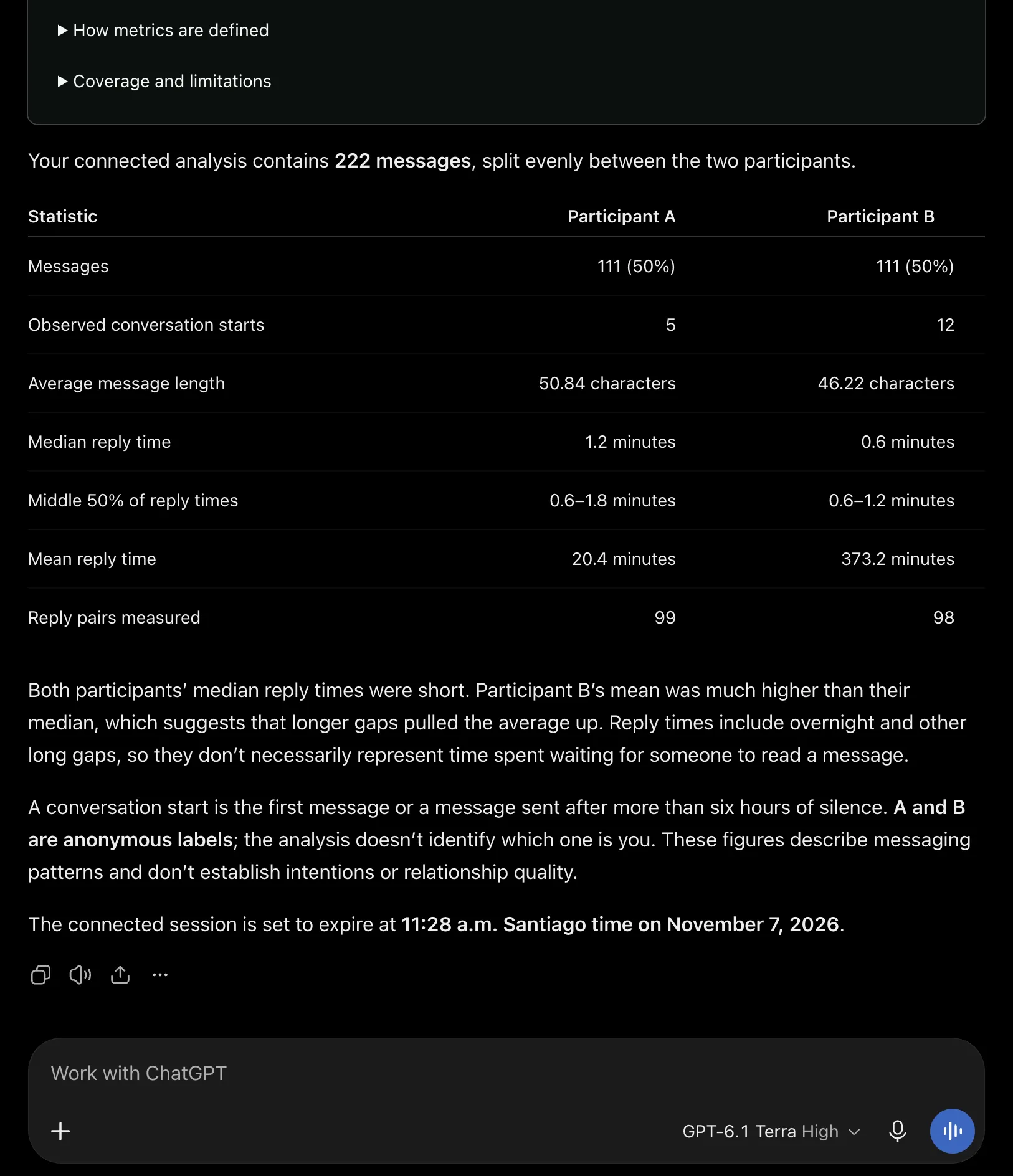
The summary ChatGPT writes after reading your statistics.
Prompts that work
Ask the way you'd normally write. For example:
who writes first more often, A or B?
why is the median reply time so different from the average
are any of these numbers based on just a few replies
what can't these stats tell me about us
show me the results card again
ChatGPT gets the definitions together with the numbers, so it can explain how each one is measured. In apps that support it, it also shows a results card with a Refresh results button and the time your access ends.
The plugin also has four tools that never touch a chat:
make a whatsapp link for +56 9 6123 4567 that says hello
format this for whatsapp: **meeting tomorrow** bring your notes
clean up these numbers for chile: +56 9 6123 4567, 961234567
show me a sample whatsapp wrapped
What ChatGPT sees, and what it doesn't
ChatGPT receives numbers about your whole conversation:
total messages and each person's share
who starts conversations, and reply pairs
reply times in minutes: median, the middle range and the average
average message length in characters
It never receives your messages, excerpts or names, not even the aliases you picked when uploading. Participants appear as A and B, and the labels don't say which one is you.
Some requests it will turn down, and say why instead of making something up:
Comparing periods, such as September against November. The statistics cover the whole conversation only.
The written parts of your report, such as summaries, findings and examples. Those stay on Le Confidant.
Uploading a chat or starting an analysis. That always happens on leconfidant.ai.
On Pro or Advanced, you may not need ChatGPT
Paid plans include the Le Confidant assistant, right next to your report. It answers your questions about the conversation directly, and unlike ChatGPT it can search the conversation itself, not just the numbers. ChatGPT works with paid sessions too, if you'd rather stay in the assistant you already use.
Ready to analyze your conversation?
Upload your exported file to Le Confidant and get instant insights into communication patterns, response times, emotional sentiment, and more — no account required.
Access ends when your session does: one hour after upload for a free session, or at the end of the Pro or Advanced window. A connection made during the free hour keeps that deadline after you upgrade, so reconnect to use the paid window.
To stop earlier, ask ChatGPT to "disconnect Le Confidant", or use Manage connections in our guide. Disconnecting stops future reads. It doesn't delete what ChatGPT already received; that follows OpenAI's own data rules.
Troubleshooting
"No eligible sessions in this browser." Open the approval link in the browser you uploaded from, or upload the chat again in this browser.
"Access to this analysis has ended." The session has expired, or you connected before upgrading. Reconnect, or upload the chat again if the session has expired.
ChatGPT answers without using Le Confidant. Start a new chat and select Le Confidant before you ask.
No results card. Some apps show results as text only. The numbers are the same.
Is the ChatGPT plugin free?
Yes, on every Le Confidant plan, including the free one. It reads results from Free, Pro and Advanced. Whether you can use plugins at all depends on your ChatGPT account.
Does ChatGPT see my WhatsApp messages?
No. It receives numbers only: message counts, conversation starts, reply times and message length. No message text, no excerpts and no names. Participants are shown as A and B.
Does disconnecting delete what ChatGPT already received?
No. Disconnecting stops ChatGPT from reading your analysis again. What it already received follows OpenAI's data rules, not ours.
Can I use Claude, or connect without the plugin?
Yes. Claude, and ChatGPT without the plugin, can connect through our MCP server. The steps are in Analyze your WhatsApp chat with Claude or ChatGPT.